Using FastRawViewer to cull thousands of images
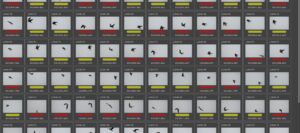
I have just returned from Costa Rica, where I took over 70,000 images. During the trip, I culled these to 7,500, and still have a long way to go. Just before that, I did extensive testing of the focus accuracy of various zoom lenses, involving 35,000 images. Before that, last November, on a trip to Sri Lanka, I took 17,000 images, and culled them to 100 or so.
Just looking at this many images is a challenge, and decisions about which are sharp, or which to keep, have to be fast, repeatable and accurate. To do this, I use a very useful piece of software called FastRawViewer (FRV). This post is mostly a guide to why and how I use FRV to assess huge numbers of images. It gets very specific, and beyond these first few sections, you will need to have a copy of the software yourself to play with. At the end, I provide my settings for FRV (on a PC), so you can quickly get set up my way, if you think that might work for you.
If you would rather head straight to a concise summary, the TL;DR is at the foot of the page — or jump directly to the FAQ.
Why so many images?
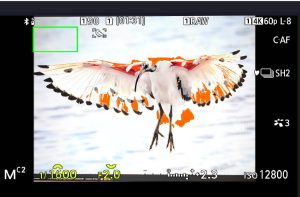
I shoot multiple genres of photography: wildlife (mostly birds), street, waterfalls and seascapes, landscapes, macro and astro. I shoot birds in flight whenever possible because, for me, the wing is the most interesting part of a bird, and you don’t get to fully see the wing unless it’s flying. The smaller the bird, the faster the wing moves, and to get a range of wing positions, you need to shoot at a high frame rate.

My camera, the OM-1 Mk II, can shoot at up to 120fps, but I tend to stay at 50fps (in full uncompressed RAW with no blackout in the viewfinder and continuous AF and exposure). One minute of shooting at 50fps generates 3,000 images, so it is very, very easy over an extended session to shoot over 10,000 images.
I also shoot street photography at 10fps (to capture the essential moment), handheld waterfall shots at 10fps (to get a range of water motion), and macro at between 10 and 120fps (the latter for insects flying). So it’s easy to get tens of thousands of images. Most of them are great and in focus, which doesn’t make the culling job any easier.
Why FRV?
I shoot in RAW and do not want to reduce the limited space on my storage cards with JPG files which I never use. So it is the RAW file that I want to examine for culling.
RAW post-processing software like Lightroom, Capture One, DxO, On1, Luminar and the rest are designed to do detailed modifications to one RAW image at a time. They are slow when presented with thousands of images, and there is no quick way to adjust the RAW file to be able to see hidden aspects of the image. Moreover, I will typically take 20,000 images down to 500 for a photo trip. I do not want to have to import 20,000 images into Lightroom and then delete 19,500 of them.
FRV is very useful because it enables you to examine the full-size raw image instead of the embedded JPG (which is what most other culling software like Photo Mechanic does). Many users just leave it there with FRV, but it also has very powerful and easily accessible controls, which enable you to examine the image in much greater detail and with much greater accuracy than just looking at the basic file. You can page through RAW files (needs to be on a fast SSD) at the same speed as if they were JPGs, but you can adjust them in ways impossible with JPGs.
FastRawViewer is a product from LibRaw, an acknowledged leader in RAW analysis, who make the famous RawDigger product, for truly deep analysis of camera sensor characteristics. They know what they are doing. FRV is also excellent value, costing only £23 or $30, a fraction of the price of Photo Mechanic.
Using FastRawViewer to cull thousands of images
This little guide covers what I have found most useful for culling tens of thousands of birds in flight photos.
My use of FRV is on a PC, but I assume that the controls and shortcuts are the same on a Mac, using the command and option keys in place of the CTRL and Alt keys. One super benefit of FRV is that it can be run on a pretty low-spec laptop. On an extended trip, culling is all I can manage, and in any event, I don’t want to take an expensive top-end laptop suitable for Lightroom or On1 PhotoRaw and risk it being stolen in a foreign country.
Recently, I have taken the 13″ Microsoft Surface Pro 11 with the Snapdragon X-elite ARM processor and a 14-hour battery life on extended trips. It is a superb tablet, has upgradeable storage (mine has 2TB), is great for handling mail and admin, runs Photoshop just fine, and runs FRV like an express train. I would hate to have it stolen, but not as much as my 14″ Zephyrus gaming laptop. When I am back, I still use this machine for culling, as it can be done anywhere.
It’s tempting to cull the images directly on the card reader for speed, but I always transfer to an external NVME SSD and cull there. This is because FRV writes an XMP file for every rating, and also creates a _rejected subfolder, neither of which you want on your camera card. It also ensures your camera card originals are safe from file handling glitches, and enables you to easily transfer the culled images to the master post-processing system.
Quickly access settings
You can very quickly get to FRV program settings with Ctrl P and keyboard shortcuts with Ctrl K, either to make changes or remind yourself of what the settings are.
Categorisation
For birds in flight, I’m interested in focus (typically on the eye) and focus hit rate. My system uses colour codes instead of star ratings, because I don’t want to put in ratings until I’ve had a closer look at the images in the final raw processor (e.g. Lightroom). The default FRV and Lightroom keyboard shortcuts for colour codes use numbers, which I don’t find convenient because they’re not handily located, and I can never remember the numbers. Instead, I use the first letter of the colour, which is much easier for me to remember.
For birds in flight, I’m interested in the in-focus hit rate. So, for out-of-focus shots, I use the red label (shortcut: R). I use the green label (G) for in-focus shots. And for potential portfolio shots, I use the purple label (P). Complete rejects are sent to the reject subfolder with the X key. In practice, I wait till the culling is all done, then select all the Red files, and mark them rejected in one go, as each rejection involves a file transfer, which slows things down a bit.
Note: the G key is by default used to toggle between the grid and single image view, which conflicts with my preferred shortcut for Green. I changed the view toggle to B instead, via the first setting in the “Zoom/Pan” shortcut settings.
Exposure, contrast and sharpness
One of FRV’s great strengths is its ability to adjust exposure, contrast and sharpness. Adjust the exposure by pressing Alt + or Alt ? for small steps or Alt Shift + or ? for big steps. The size of the step can be changed in the “exposure” settings section.
It’s not uncommon (for me at any rate) to have a sequence of shots which are either over- or under-exposed. For that situation, it’s helpful to keep the same exposure setting without having to adjust it for every separate photo. To do that, set the third setting down in the exposure settings panel — “exposure correction on file open” — to “Keep from previous file”.
For difficult situations, where, for example, the focus point is a black eye on a black bird, it’s helpful to boost the shadows, and this can be done with the default toggle setting of Shift S. Similarly, boosting the contrast can be a great help, and this is done with the K key to increase, or Shift K to decrease.
RAW files are typically not sharpened as you open them, and a preset amount of sharpness can be applied using the shortcut S. I do this at the beginning of every session.
Focus peaking
There are two levels of focus peaking display, and both darken the image, which makes it not as quick to check focus. Normal focus peaking is done with the I key, but I don’t find this particularly helpful for birds, as it isn’t great at telling you whether the eye is in focus.
The best one for this, in my experience, is the fine detail view which can be seen with the Q key. This will often show the eye alone and is much more helpful (but you still have the issue that the image is darkened).
Viewing the images
The best way to view the image is without the side panels, which can be toggled on and off with the Tab key. The image can be zoomed to a predetermined level (settings: Zoom) with the Z key. The level of zoom can be changed with the Ctrl +/? keys as with Photoshop. When zoomed in, you can easily move around the image using two fingers on the touchpad.
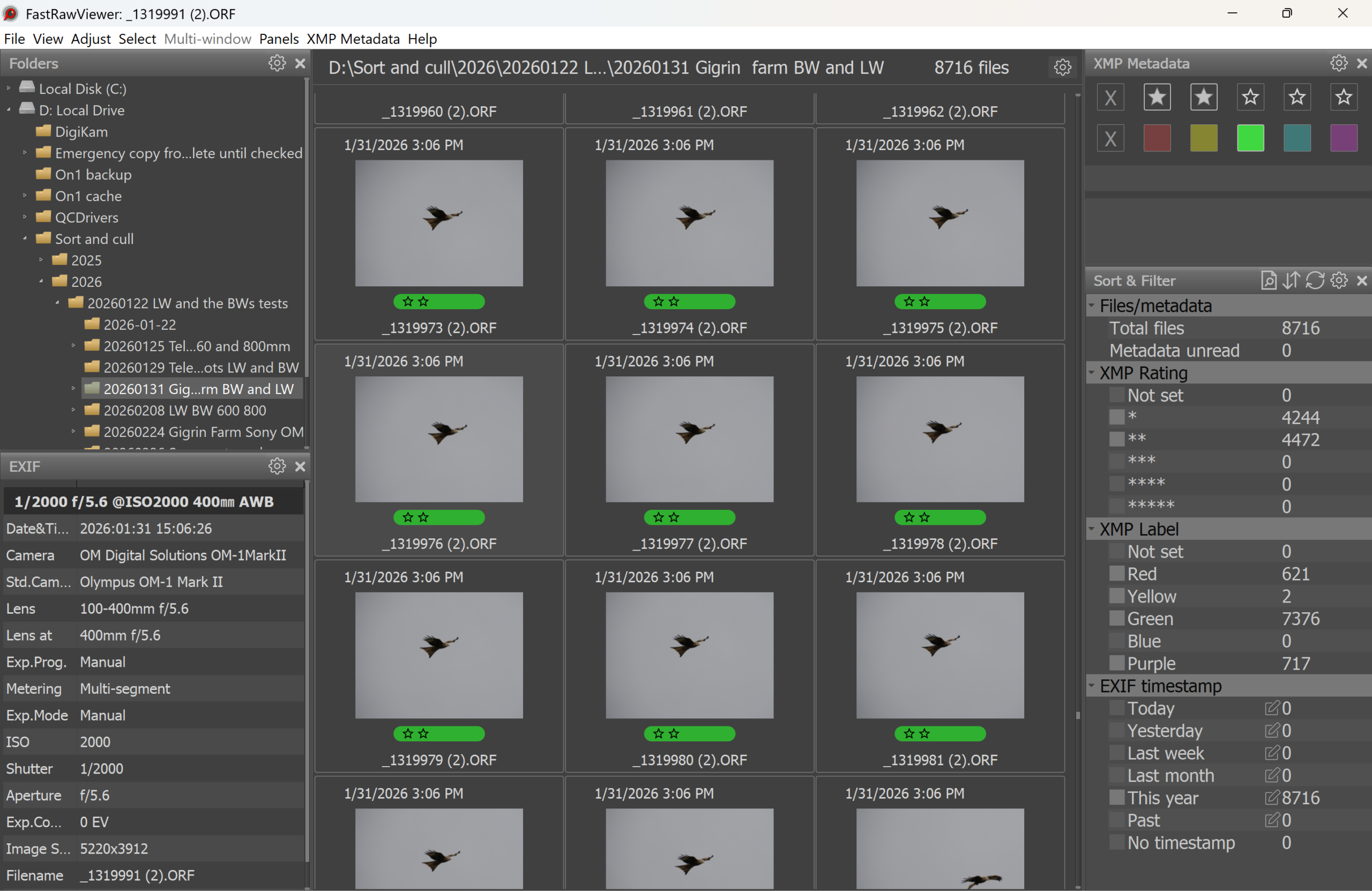
When labelling images, I tick (only) the “not set” box in the label section of the sort and filter panel on the right-hand side. All images that are labelled then disappear, and I’m only left with unlabelled images to work on. At the bottom left, there is a counter of how many unlabelled images are left, which is useful for gauging progress (but a bit depressing at the beginning of the sequence). Ctrl Z can be used to reverse any overhasty labelling that you might have just done.
An alternate method for stepping through the images is to set the behaviour in the XMP metadata panel (F5) on the top right. From the cog icon, select your preference from the “move to next file after” dropdown. I set this to “rating or label is set”.
Statistics and transfer
The “sort and filter” panel (press Tab or F8) is amazingly helpful for managing the culled images. Right off the bat, you get a count by rating or label for statistics. You can then select by rating or label to further refine your choices (I go through the Green — in-focus — category at least twice, looking for portfolio images). The filter function is how I get the stats for in-focus shots, as in this article.
Post-processing
When finished, I eject the external SSD from the culling machine and plug it into the master post-processing system. I have an identical setup of FRV on the master system, so I can read all the stats, select the “P” portfolio quality images, and transfer them to the final directories for processing.
I recommend that you do this by selecting all the “P” images, then right-clicking and choosing the /copy to/select folder option in the drop-down. “Select folder” on a PC allows you to create new folders in the process, so it is more useful to me.
My settings
You can download my PC settings for FRV via the links below. Right-click each link and select “Save Link As” to download the file — left-clicking will open the raw file contents in your browser instead. To install on your PC, double-click on the downloaded .reg files. The Windows Registry Editor will start and will record changes into the Windows Registry. This is an unusual way of handling settings, but LibRaw are a very techie outfit. It has not caused any issues on any PC I have transferred settings to, and I have done it many times.
TL;DR
- FastRawViewer renders true RAW data rather than the embedded JPEG, giving a far more accurate assessment of sharpness and exposure than Photo Mechanic or Lightroom’s thumbnail view.
- At 50fps, one minute of shooting generates 3,000 images; FRV pages through these on a fast SSD at JPEG speed, making it practical to cull tens of thousands of files without importing them into a DAM.
- Colour-code shortcuts remapped to the first letter of the colour (R, G, P) are significantly faster and more memorable than the default numeric shortcuts.
- The fine detail view (Q key) is the most reliable tool for checking eye focus on birds — more useful than standard focus peaking (I key) for this purpose.
- FRV runs well on low-spec hardware; the Microsoft Surface Pro 11 with Snapdragon X-elite handles the software without difficulty, making it a practical travel culling machine.
- At £23/$30, FRV is a fraction of the cost of Photo Mechanic and, for RAW-only shooters, arguably the more capable tool.
Frequently asked questions
Does FastRawViewer work on a Mac?
Yes. FRV is available for both Windows and Mac. The keyboard shortcuts described in this post use CTRL and Alt; on a Mac, substitute the Command and Option keys respectively. The interface and functionality are otherwise identical, and the settings files provided are Windows .reg files — Mac users will need to configure their preferences manually within the application.
Why not just use Photo Mechanic for culling?
Photo Mechanic is fast and widely used, but it displays the embedded JPEG preview rather than the actual RAW data. For casual culling that is perfectly adequate, but if you want to verify true sharpness — particularly the eye focus on a bird — you are looking at a compressed, camera-processed thumbnail, not the real file. FRV renders the RAW data directly. It also allows you to adjust exposure, contrast and sharpness on the fly during culling, which Photo Mechanic does not. At roughly a quarter of the price, it is hard to argue against it.
Can FRV handle OM System RAW files (.orf)?
Yes, without any difficulty. FRV is built on the LibRaw decoding library, which supports a very wide range of RAW formats including OM System .orf files. It works with OM-1 Mk II files including the high-resolution and computational RAW variants.
Is it safe to install .reg files from someone else’s PC?
Reasonable caution is sensible with any .reg file, as they write directly to the Windows Registry. In this case, the files contain only FRV preference and shortcut settings — nothing that touches system behaviour, security settings, or startup entries. You are welcome to open the files in a text editor before running them to verify the contents; they are plain text and entirely readable.
What minimum hardware do you need to run FRV usefully?
The critical requirement is a fast SSD — page-through speed at scale depends almost entirely on storage speed rather than CPU power. A fast external NVMe SSD connected via USB 3.2 or Thunderbolt is the single most useful hardware investment you can make for culling.
Can FRV pass ratings and labels through to Lightroom?
Yes. FRV writes ratings and colour labels to XMP sidecar files alongside the RAW files. When you import into Lightroom or any other XMP-aware DAM, these are read automatically. The colour label mapping is not identical between FRV and Lightroom by default — worth checking with a handful of test files before committing to a large cull.